Android, iOS, and macOS apps: Install apps on devices
- Select the Devices tab in top navigation.
- Select one or more device names from the list.
- In the right panel, choose Apps.
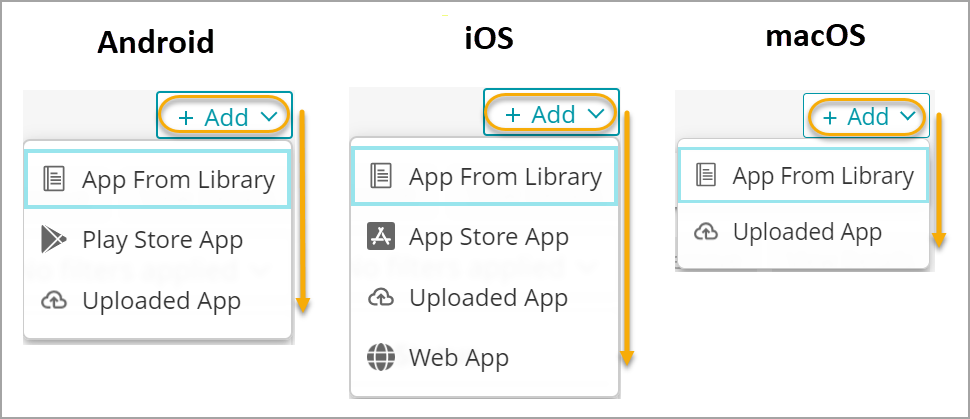
- Click +Add. Then complete one of the following steps.

NOTE: To successfully install an iOS app available associated with your organization's Volume Purchase Program (VPP) you must ensure that you have a sufficient number of licenses. Exceeding the license number prevents you from installing a VPP iOS app. You can review the numbers of available licenses for each app in the Apps Library, in the Licenses column. For more details, see View available iOS app licenses.
- App From Library:
- Select one or more apps from the App Library list.
- Click Install on Device.

NOTE: For Android EMM Fully Managed devices, if the app is a Store App and the Launch the app after successful installation checkbox is selected in the library, the app will automatically launch once installation and the inventory command are completed successfully.
- PlayStore App: (Android only)
- Click Play Store App.
- Search for apps by keyword.
- Select one or more apps.
- Click Import and Install on Device.
- App Store App: (iOS only)
- Under Select Apps to Import, specify the target OS and the country where the app is available.
NOTE: The app can only be installed on a target device if it is available in the country where the device is located.
- Search for apps by keyword.
- Select one or more apps.
- Select one or more of the following check boxes, as applicable:
- Add imported apps to library: Publish this app to the KACE Cloud Apps library. This option is selected by default, and cannot be changed.
- Automatically keep these apps up to date: Allow KACE Cloud to automatically install the app updates as they become available.
- Publish these apps to the app catalog: Allow device users to install this app through the KACE Cloud Connect app.
- Click Import and Install on Device.
- Under Select Apps to Import, specify the target OS and the country where the app is available.
- Uploaded App:
To upload an app from your machine:
- Review the following guidelines for uploading custom apps:
- Uploaded apps can only be installed on fully managed devices.
- A custom app cannot be uploaded if an app with identical identifier is available anywhere else, either in the public PlayStore or a different managed PlayStore.
- To update a custom app, you can simply upload the new version of the file in the same manner as the original. There is no need to delete the original version prior to that.
- To upload a new version of a custom app, the version value must be changed. If the version is not updated, the upload is rejected even if there are other changes in the file.
- If a custom app is uploaded and then deleted from KACE Cloud, the same app cannot be uploaded again. Instead the admin must visit the managed PlayStore portal and re-approve that app. After that approval, the app reappears in KACE Cloud after a short interval.
- Attempting to deploy an app without a Google developer account may result in failure. To prevent this issue, use a private play store.
- If a duplicate package name error is reported, you must ensure the app uses a globally unique app ID.
- Click Uploaded App.
- Browse or drag and drop App Package Files.
- Click Upload and Install on Device.
- Review the following guidelines for uploading custom apps:
- Web App: (Android only)
Both free App Store apps and internal (enterprise) apps are supported for Android devices.
- Click Web App.
- Name app, then provide URL and icon.
- Click Add Web App.
- App From Library:
- To push the latest app version manually:
- Select an app from the list.
- Click Update.

NOTE: If an app cannot be updated through the play store either manually or automatically, or be installed on some devices, ensure the app is compatible with the target device.
- To remove one or more apps from the device:
- Select Apps in the right panel.
- Select one or more apps to remove.
- Click Remove, then Confirm.
|
|
IMPORTANT:
|

Android, iOS, and macOS apps: Install apps using Policies
- Select the Policies tab in top navigation.
- Complete one of the following steps:
- To create a policy, click Add New.
- To edit an existing policy, in the policy row, click the Edit button.
- In the General section, select one or more labels associated with target devices. For more details about labels, see Using labels to group similar items.
- In the policy view that appears, in the left panel, click Apps.
- Select the app that you want to associate with the policy.
- In the right panel that appears, click Link to Policy.
- In the top right corner, click Activate and Push Changes.
When the policy is activated, the selected app is installed on all devices associated with this policy. For more information about policies, see Using policies to manage device configurations.